JioFi.Local.Html – JioFi Router Admin Login – Username & Password
JioFi Wireless router device is the best gadget from Reliance Jio for the WiFi network to connect with multiple devices at a time. Using which create a small WiFi network that can be used for your business purposes, home WiFi etc. Here in this post, know everything about JioFi device, JioFi.Local.Html , the address of the router admin login, username password etc.
JioFi is portable 4G WiFi router to get 4G speed data on any device. This small device is manufactured for Reliance Jio, to compatible only with Jio SIM to be inserted on to enjoy Jio data packs. Just inserting Jio SIM on the slot available on this device, Just make a WiFi environment to get connect with network. Just entering the SSID and password that you can see in the inner side of the device, you can connect to the WiFi network. So it is better to buy JioFi for your home and business purposes. LTE smartphones can be converted to VoLTE RCS Rich just installing Jio4Gvoice/JioCall App (Now JioCall) on it. This is one another advantage of device.
What Is JioFi.Local.Html?
JioFi.Local.Html is the host name address to access the JioFi router admin page, and the page is really redirected to 192.168.1.1 (Since most of the routers comes with this default address) page. By accessing the admin page of the router, then you can manage all the stuffs on there. Many options available there JioFi network Name (which means SSID), network management, security options, WAN, LAN, IPQoS, Proxy etc.
By Default, JioFi have user name and password as “administrator” for the system router dashboard login.
How To Configure JioFi Router
Configuring Jiofi local html is very easy. Here in this section you will learn all the configuration of JioFi Router admin section.
Login To JioFi.Local.Html
Login to JioFi router admin section on your system by entering the address JioFi.local.html on your web browser. This address is similar to we have used commonly as 192.168.1.1 or just the address redirected to this ip address.
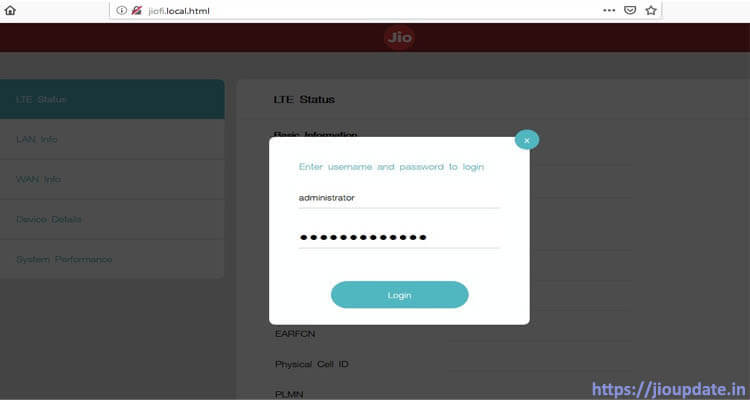
When you enter the above address, then you will get login page to enter the Username and Password. In Both the field, enter “administrator” as user Id and password, and then hit login button.
Make sure that JioFi device should be connected to the device, if it is desktop, laptop, tablet or smartphone Via the hotspot to login to the JioFi Router admin page. When not connected, you will get Server not found error. You can see sign In link at the top right cornet to get the username and password window.
After successful verification of Use ID and Password, You will get the JioFi router admin dashboard to get everything that you need to manage.
Change JioFi Username And Password (SSID & Password)
Here in this section, we will look at how to change the default username and password of JioFi router.
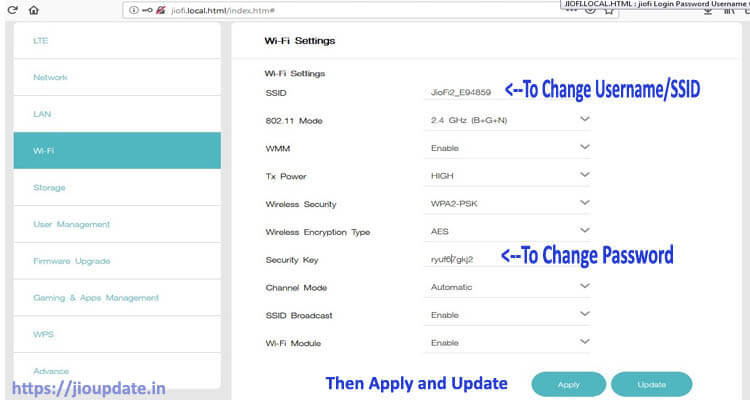
- As above mentioned, First login to the JioFi admin dashboard using the user name and password as “administrator” via browser entering http://jiofi.local.html on address bar.
- After login, you can see the option “WiFi” in the admin panel, Just click on them.
- And then go to “Security Key” section to change the username and password
To Change the SSID or username on JioFi admin panel, Find Network Option, and then go to WiFi Configuration, and you will find the network name field, Just change the default name and enter your desired username.
http://JioFi.Local.html (On Web Browser) >> (UserName: administrator, password: administrator) >> Login >>Network >> WiFi Configuration >> Network Name (SSID) >> Change Name >> Apply >> UPDATE
Change Default Password of JioFi Router
To change Jiofi password, you can see the password option in the admin panel. You can see “Secure Key” option in admin dashboard.
http://JioFi.Local.html (On Web Browser) >> (UserName: administrator, password: administrator) >> Login >>Network >> WiFi Configuration >> Secure key >> Change Your password as your wish >> Apply >>UPDATE
How to Access MicroSD Card Inserted On JioFi Device
Not only this jiofi device to create a wifi environment, the device have a slot to hold the SD card so that the SD card upto 32 GB can insert on it. So via this, the device can be used as storage device too.
- Insert Micro SD card on the SD card slot on JioFi device. If you can’t find the slot, just remove the back cap, then remove battery and you can see two slots there. One to insert Jio SIM card and other to insert Micro SD card. Make sure to insert SD card no more than 32 GB storage space.
- Then login to JioFi router admin using the credentials username and password as “administrator”.
- Find storage and enable for SD card on the router admin panel.
- Then after enable, you can access the files on the JioFi SD card on any of the device that are connected to the device using a hotspot.
- To access the files, open any web browser and enter the url ” http://jiofi.local.html/sdcard.html ” and enter.
- You will see “DISC” icon, click on and enter the user id and password and access the files. Now you can read, write, upload, and do all the operations.
How To Connect JioFi To Desktop / Laptop PC Using WiFi
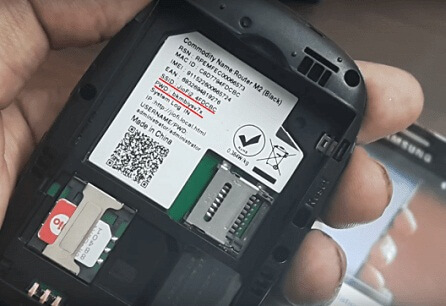
To connect desktop or laptop computers to JioFi WiFi device, Just Turn on JioFi device. And then click on the WiFi options that can see in right bottom corner of the the task bar. When you click on, you can see list of all available WiFi network. Select the network name that can see in the back side (Remove Battery and there you can see SSID and Password, First Not these two credentials on a paper) of the JioFi device.
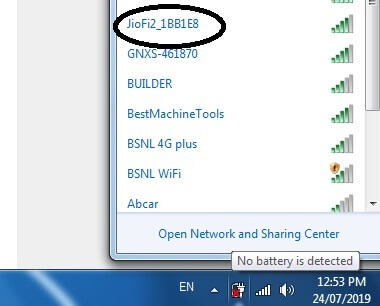
Entering the SSID and Password, and then click connect button. Your computer then connected to the WiFi device.
JioFi Router Device Specifications
| Device | JioFi |
| Speed | 150Mbps |
| Battery | 2600mAh |
| Sd card Slot | Yes |
| SIM Slot | Micro SIM |
| Connect Device | Up to 15 Devices |
| Warranty | 1Year Manufacturer |
| Weight | 200 G |
Frequently Asked Questions
Why Server Not Fount When Entering JioFi.Local.Html On Web Browser?
http://jiofi.local.html is the url to login to JioFi router admin page. in order to login the web page, your device should be connected with the WiFi created by the JioFi device. so only you will get router admin panel. So Turn on JioFi device and search with device and then connect by the SSID and password you can found on back side of the device.
Where Can I Find the user id (SSID) and password of JioFi Device?
I recommended to note down SSID and password of the Jiofi device before you are trying to connect with device. To know the SSID and password, Just remove the back cap of the device, and then remove battery. When removed, you can see different specification related to the device. There find the fields SSID and PWD.
How To Check The Signal Strength or Speed Of the JioFiDevice?
When you turn on the JioFi device, you can see different indications like battery status, signal bar (like see in our mobile phones), WiFi signals etc. In the signal bar, when it is in “GREEN” color, the signal strength is good and you will get high speed internet. When the signal bar appears in “BLUE”, the medium signal strength, and medium speed , and when it appears in “RED”, there is very bad signal, and the chance to connect to internet is very low. You can even speed up the internet by configuring exact jio apn settings on the settings section on JioFi router admin panel.
What is the speed of Jiofi?
Internet speed on JioFi is good and will get the same speed that you are using Jio SIM on your smartphone. Jio says, you will get download speed up to 150 MBPS and Upload speed up to 50 MBPS.
Is it Possible to Make Video calls on 2G/3G phone using JioFi?
Sure, you can make HD video and voice calls on 2G or 3G smartphone. For this download JioCall app (Formerly Jio4Gvoice) app and configure, and using the app you can enjoy video calls and voice calls.
Conclusion
Yes, Jiofi is the best router now available in the market to create a small local area network. You can connect up to 20 devices in the network. You can manage all the router by the jiofi.local.html router address. This JioFi device can be used for small scale business and startups. Fast internet with affordable price is the best feature that you can find with JioFi. When compared to other broadband connections available now, JioFi is very good option in all the ways. The Price of the JIoFi devices varying from 999 INR to 1999 INR according to models. Buy now and enjoy high speed internet.

Comments
Post a Comment